> ## Content Index
> Fetch the complete content index at: https://developerinsider.co/llms.txt
> Use this file to discover other available public pages before exploring further.
# Best iOS Development Tips and Tricks - Part 2
- URL: https://developerinsider.co/best-ios-development-tips-and-tricks-part-2/
- Published: 2018-07-12T18:20:53.000Z
- Updated: 2020-01-28T06:57:27.000Z
- Author: Vineet Choudhary
- Tags: iOS, Xcode, Tips and Tricks
## 1\. Open Terminal for current Project using Xcode Keyboard Shortcut
Do you know, you can open Terminal from Xcode at the project's path with a custom keyboard shortcut? First, Create a new script file in your project root directory with following command -
```sh
#!/bin/sh
open -a Terminal .
```
Now, open terminal and run `chmod +x Script.sh` to make the file executable. Now go to Xcode's Preferences and select the Behaviors tab. Click on the **+** sign to add a new custom behavior, and on the right hand side, check **Run** and choose the script that was just created.
Click the **⌘** symbol next to the behavior script name to set the keyboard shortcut. I use `⌃` \+ `⌘` \+ `T` for opening the Terminal. (Keyboard shortcut symbols - `⌘` \= Command key, `⌃` \= Control key, `⌥` \= Option (alt) key, `⇧` \= Shift key)
Here the demo video which cover all steps -
## 2\. Clear Derived Data using Xcode Keyboard Shortcut
As we opened terminal from Xcode, similarly, we can [clear drive data](https://developerinsider.co/clean-xcode-cache-quick-fix/) with a custom keyboard shortcut using following script -
```sh
rm -rf ~/Library/Developer/Xcode/DerivedData
rm -frd ~/Library/Caches/com.apple.dt.Xcode/*
```
## 3\. NSDoubleLocalizedStrings (Test Internationalization)
You can use `NSDoubleLocalizedStrings` as a launch argument to double the length of all of your `NSLocalizedStrings` to easily test your UI for internationalization purposes.
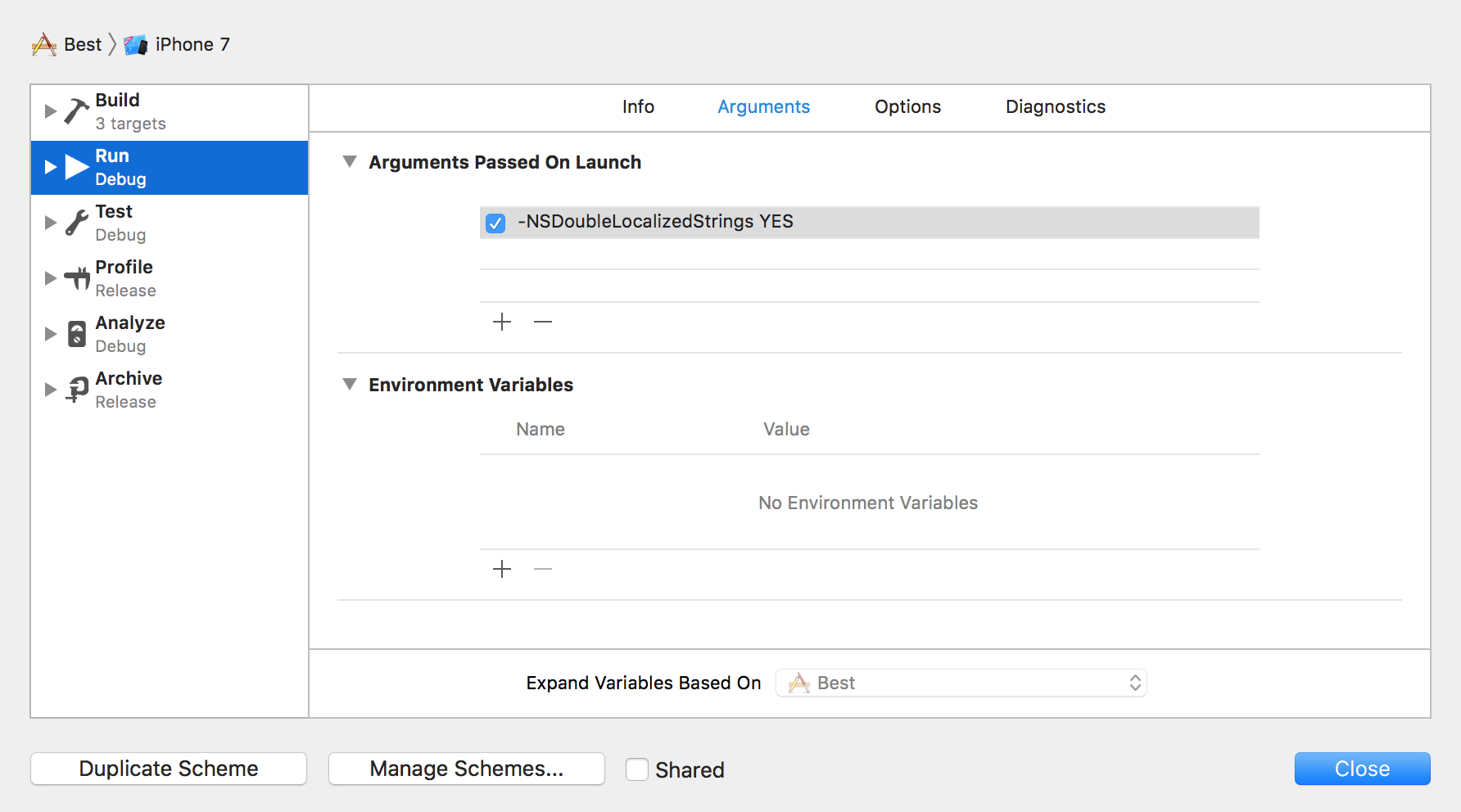
Here the side by side demo -

## 4\. Set UserDefault Key Value from Launch Argument
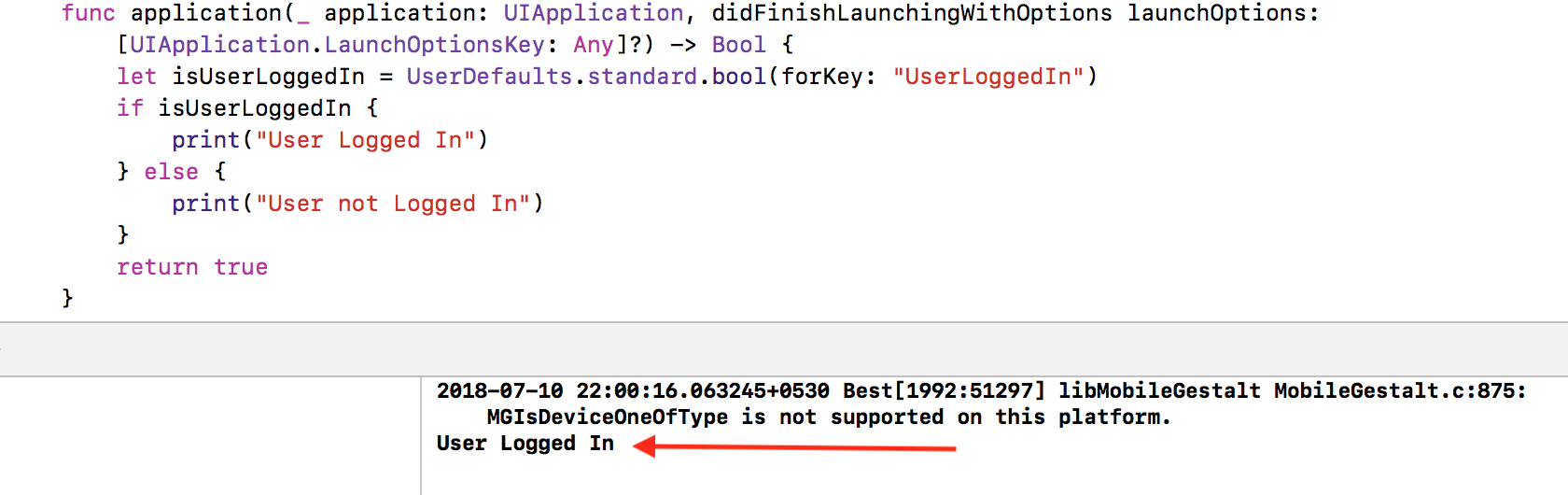
This is the best hidden feature of UserDefaults. If you pass a `UserDefault` key and value as a launch argument this will set new value for that key. You can use this trick to override current value for any key. This will help you a lot in debugging.

Here the screen-shot for above key -
## 5\. Access Document Directory Content in Files App
From iOS 11, If you set `LSSupportsOpeningDocumentsInPlace` to YES and `UIFileSharingEnabled` to `YES` in your `Info.plist`, you can access your application Documents directory in the Files application.
```xml
LSSupportsOpeningDocumentsInPlace
UIFileSharingEnabled
```
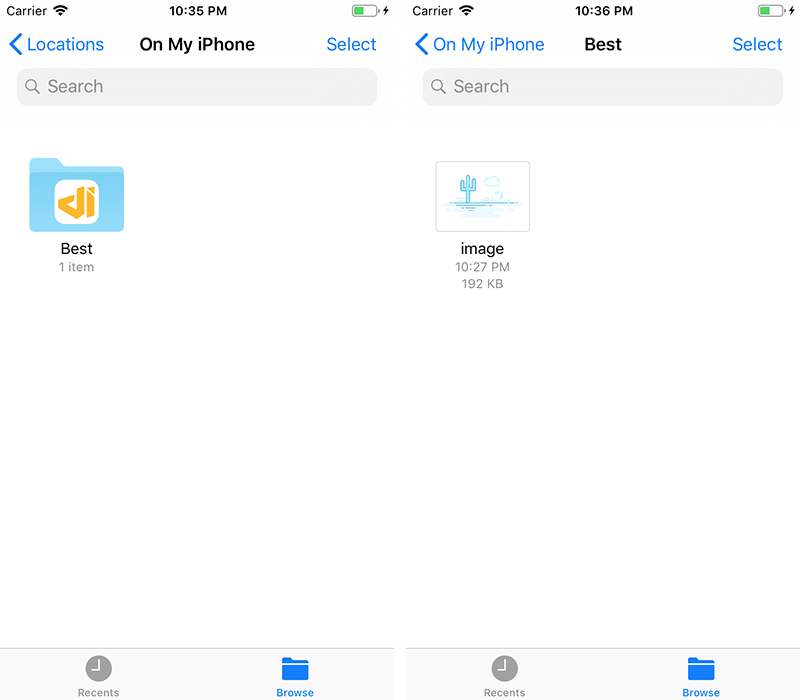
For debugging purpose, before iOS 11 you can use [FLEX](https://github.com/Flipboard/FLEX?ref=developerinsider.co). FLEX also contains a ton of useful debugging features like network request monitor, sqlite database browser etc.
## 6\. Quick Jump on Specific Line Number
You might know, `command` \+ `shift` \+ `o` opens the "Open quickly" dialog, where you can quickly find and open files that contain the text you enter. But, If you type a line number after a file name in then open dialog jump straight to the that line number of file. Like, `AppDelegate:44`.
## 7\. Where to Open a File
In Xcode, you can open a file in various ways, you can open a file in the standard editor, in a new or existing assistant editor, in a new or existing tab, or in a new window. Here's how you can decide about this. When you clicking on a file name, hold down `⇧` \+ `⌥` \+ `⌘`.A pop-over will appear and let you choose where exactly you want this file to be displayed. Demo Video -
## 8\. Git Blame
If you work with a team, do you ever need to know who added this horrible bug? Place the cursor on the offending line, right click to open the contextual menu, and Click on **Show Last Change For Line**.


---
[Best iOS Development Tips and Tricks - Part 1](https://developerinsider.co/best-ios-development-tips-and-tricks/)
---