
Prerequisites
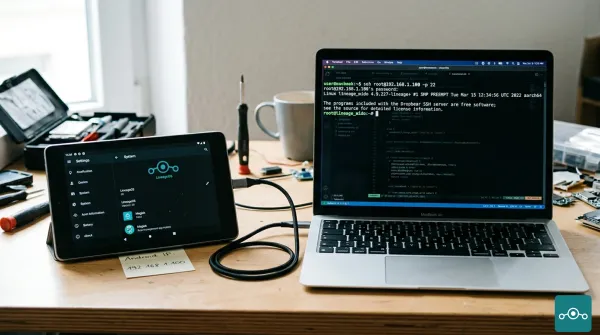
- Rooted Android device running LineageOS
- Magisk installed (for boot scripts)
- Home Assistant Companion app installed on the device
- ADB access to the device (via USB or wireless)
1. Connect Device to ADB
1.1. Connect via USB
Connect the Android device via USB and get a root shell
adb shell
su
1.2. Connect via Wireless ADB
1. Enable wireless ADB (one-time setup via USB)
If wireless ADB is not yet enabled, connect via USB first:
adb tcpip 5555
adb connect <DEVICE_IP>:5555
Then unplug the USB cable.
2. Connect to the device
adb connect <DEVICE_IP>:5555
3. Get a root shell
adb shell
su
2. Find the Correct Package and Activity Name
2.1. Find the Home Assistant package name
pm list packages | grep home
Example output:
package:io.homeassistant.companion.android.minimal
Note: Your output may show
io.homeassistant.companion.android(full version) orio.homeassistant.companion.android.minimal(minimal version). Use whichever package name appears on your device in the following steps.
2.2. Find the correct launch activity
Replace the package name below with the one from the previous step:
cmd package resolve-activity --brief -c android.intent.category.LAUNCHER <YOUR_PACKAGE_NAME>
Example output:
io.homeassistant.companion.android.minimal/io.homeassistant.companion.android.launch.LaunchActivity
Note: The activity class path may differ from the package name. For example, the minimal version uses package name
io.homeassistant.companion.android.minimalbut the activity class isio.homeassistant.companion.android.launch.LaunchActivity(without.minimal). Always use the exact output from this command in the boot script.
3. Create the Auto-Start Boot Script
3.1. Create the Magisk service.d directory (if it does not exist)
mkdir -p /data/adb/service.d
3.2. Create the boot script
Replace the activity path below with the exact output from step 3.2:
cat > /data/adb/service.d/start_ha.sh << 'EOF'
#!/system/bin/sh
while [ "$(getprop sys.boot_completed)" != "1" ]; do
    sleep 5
done
sleep 15
am start -n io.homeassistant.companion.android.minimal/io.homeassistant.companion.android.launch.LaunchActivity
EOF
Note: The script waits for the system to fully boot (
sys.boot_completed = 1), then waits an additional 15 seconds for the UI and network to be ready before launching the app. Adjust the sleep value if needed.
3.3. Make the script executable
chmod 755 /data/adb/service.d/start_ha.sh
4. Disable Battery Optimization
Prevent Android from killing the Home Assistant app in the background:
dumpsys deviceidle whitelist +io.homeassistant.companion.android.minimal
Note: Replace the package name with yours if you are using the full version (
io.homeassistant.companion.android).
5. Test and Verify
5.1. Test the script manually (without rebooting)
sh /data/adb/service.d/start_ha.sh
Home Assistant should launch on the device.
5.2. Reboot to verify auto-start
reboot
Wait about 30-45 seconds after reboot. Home Assistant should launch automatically.
5.3. Verify the app is running (optional, via ADB)
adb shell dumpsys activity activities | grep homeassistant
If the activity appears in the output, the auto-start is working.