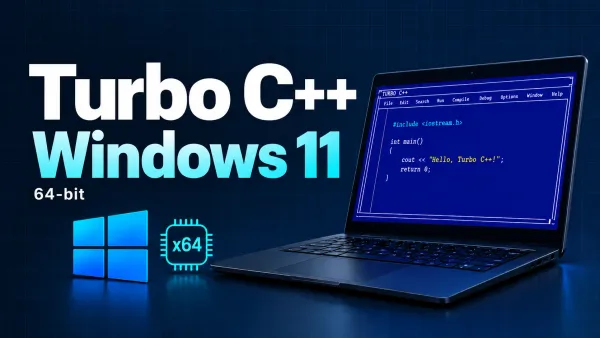

Here's a complete guide to installing Turbo C++ on Windows 11 and writing your first "Hello, World!" program.
1. Download Turbo C++ Installer
Download the Windows 11 x64 installer from from here or use download button bellow.
Confirm the filename is TurboCPP-Windows-x64-Setup.exe. File Explorer may hide the .exe extension.

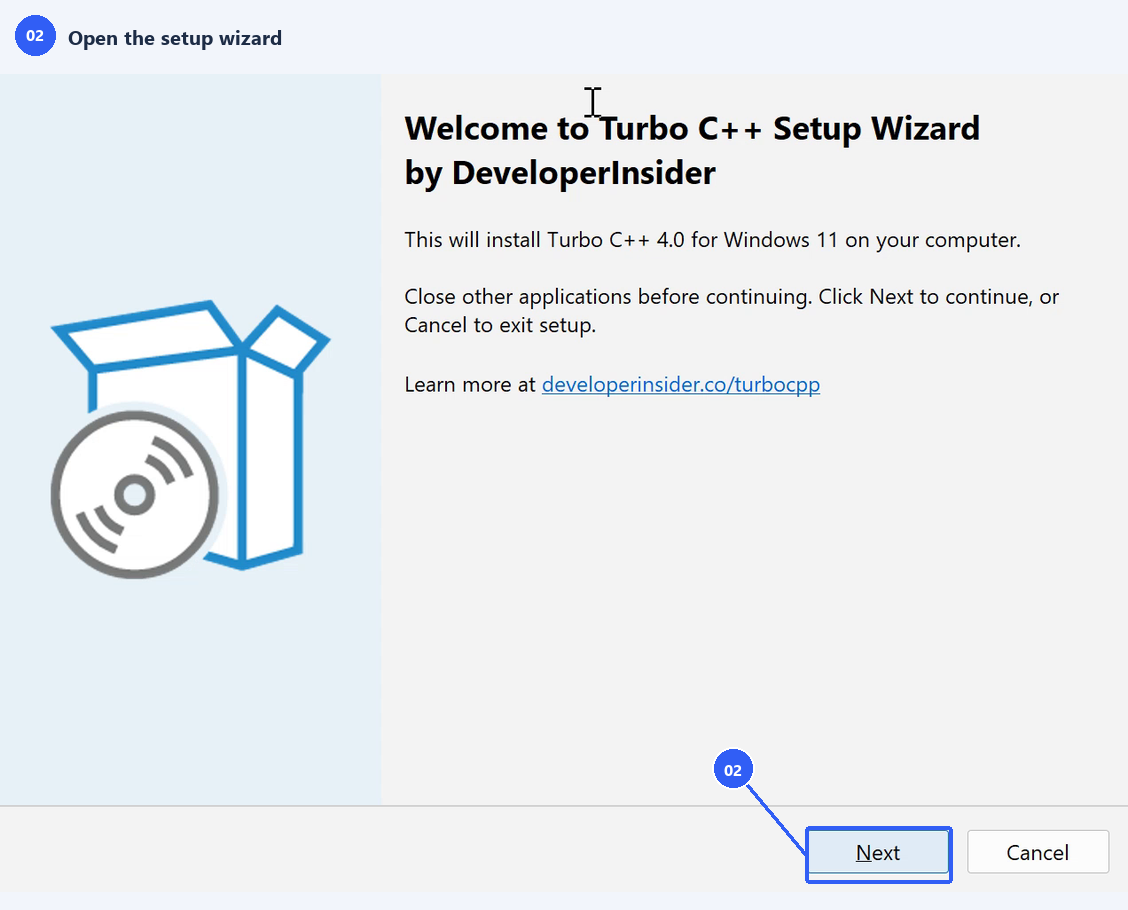
2. Open the setup wizard
Open the installer. Check that the welcome page, then select Next.
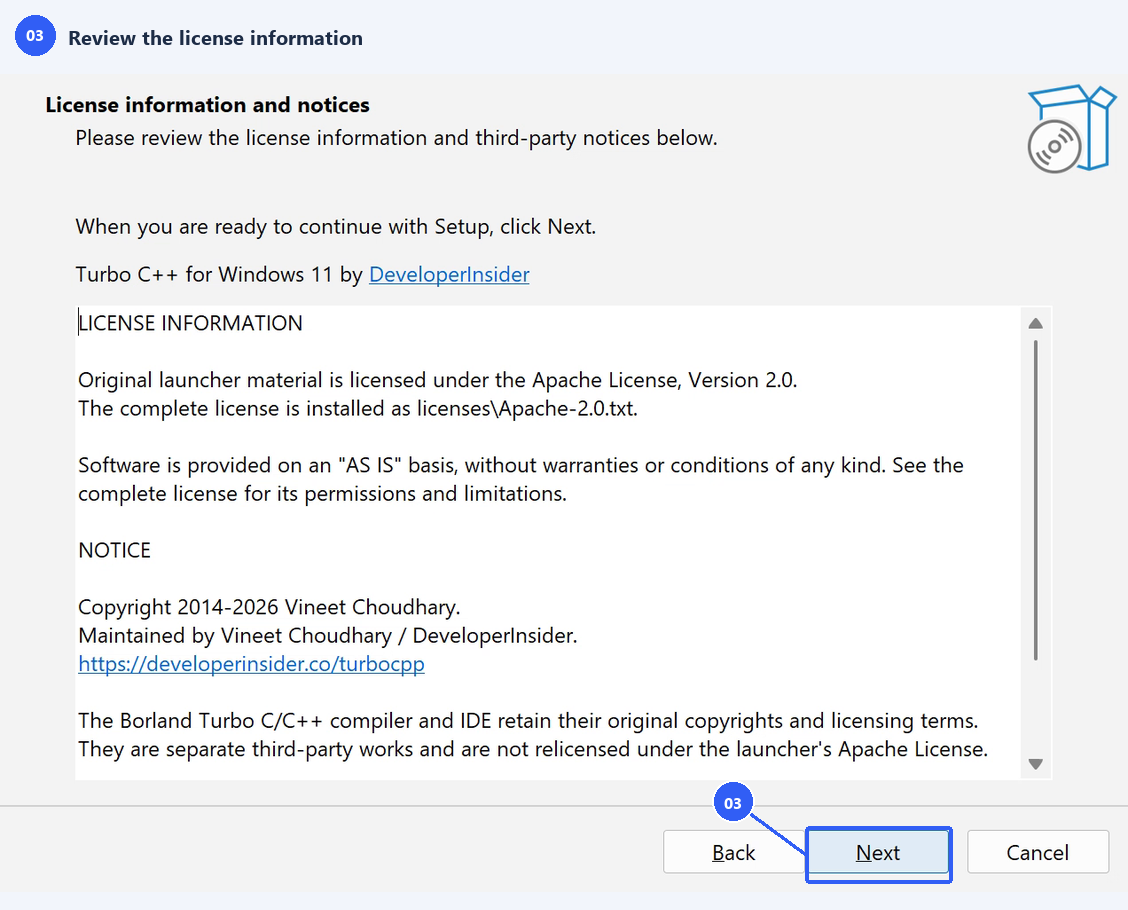
3. Review the license information
Read the license information and third-party notices. Select Next after reviewing the page.
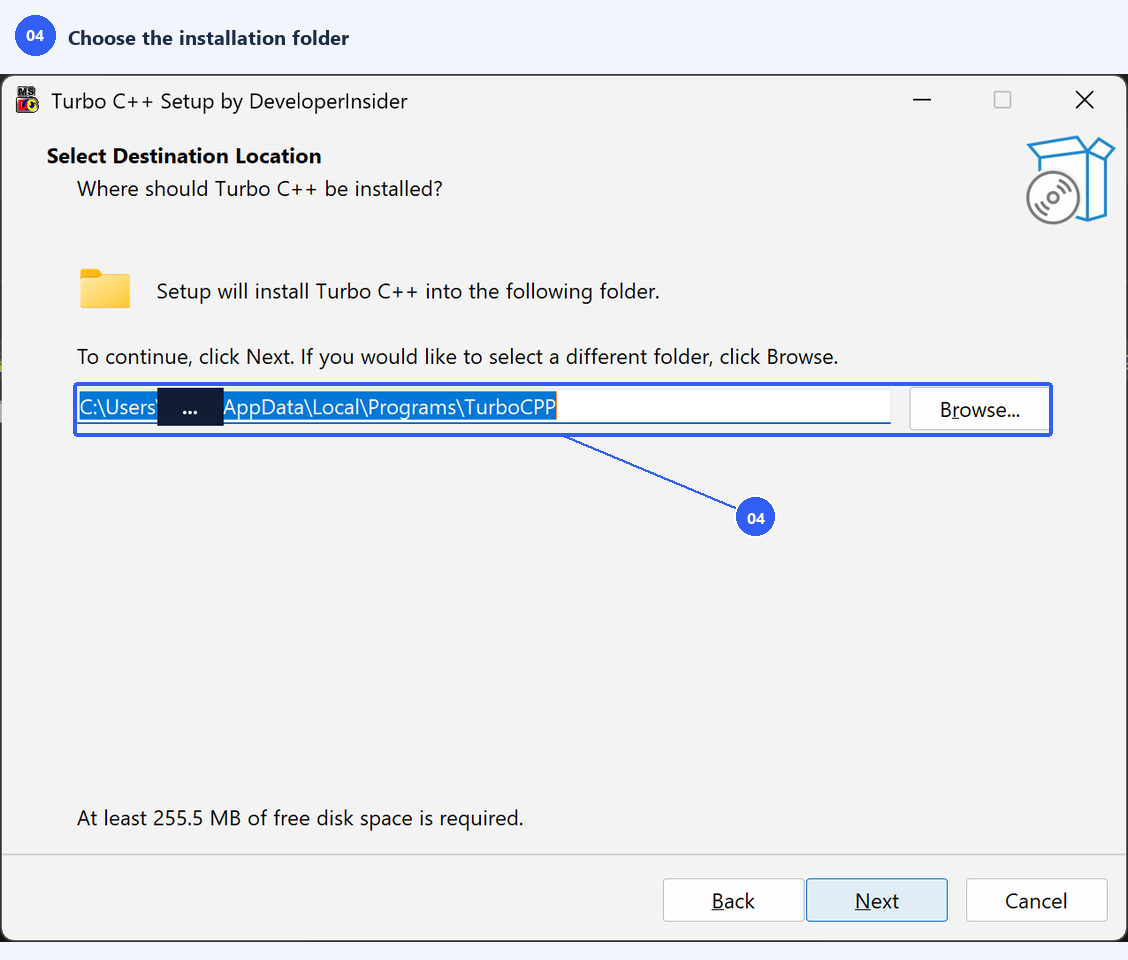
4. Choose the installation folder
On Select Destination Location, keep the default application folder or choose Browse to select another location.
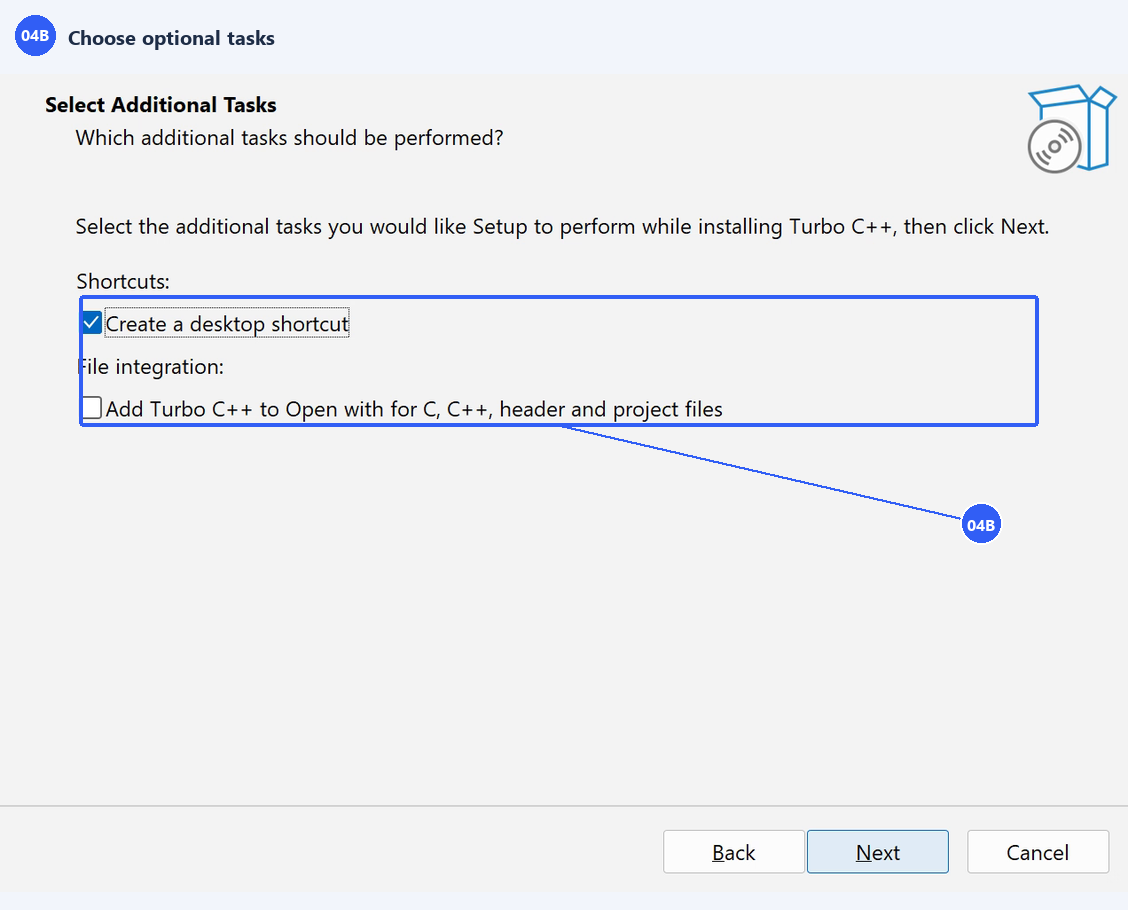
4b. Choose optional tasks
Choose whether to create a desktop shortcut or add Turbo C++ to Open with, then select Next. The example selects the desktop shortcut and leaves Open with integration unchecked.
5. Review and install
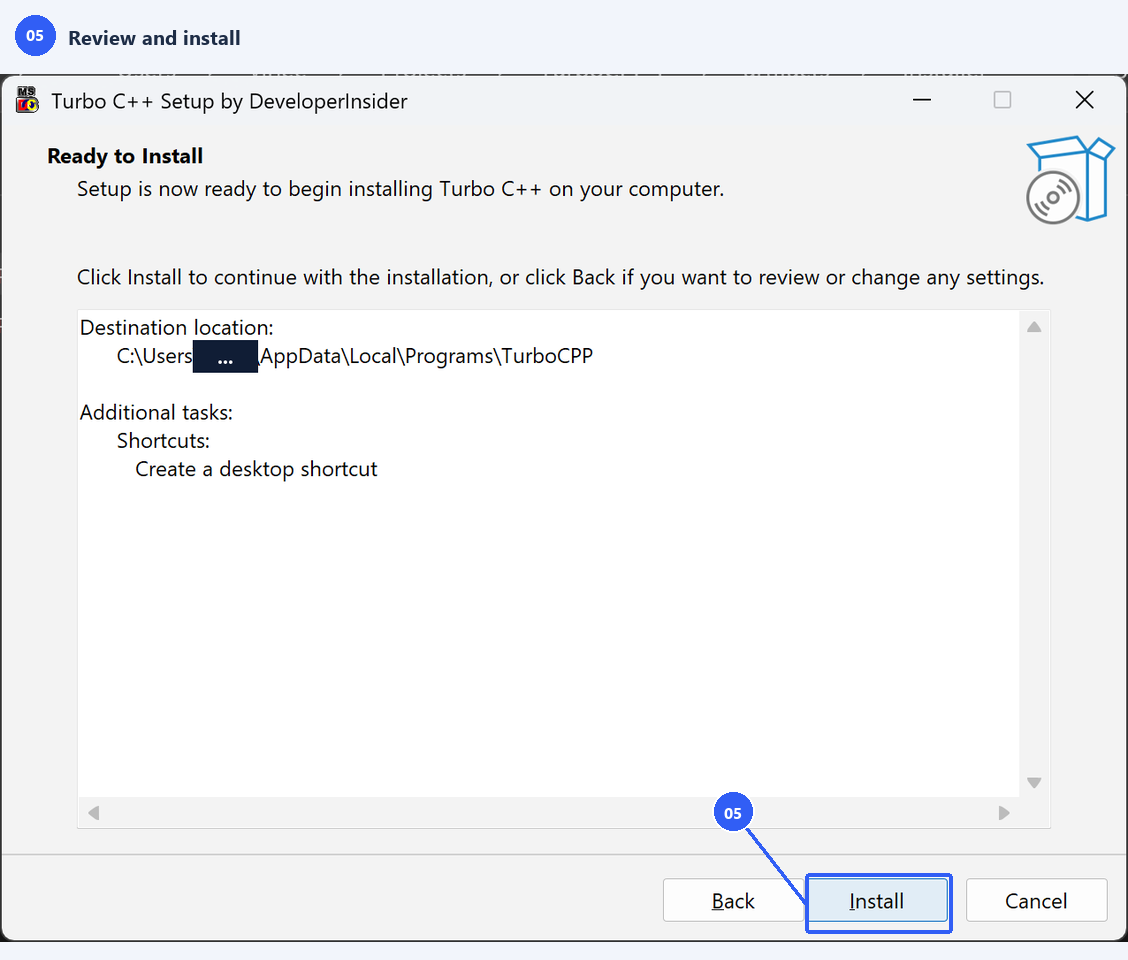
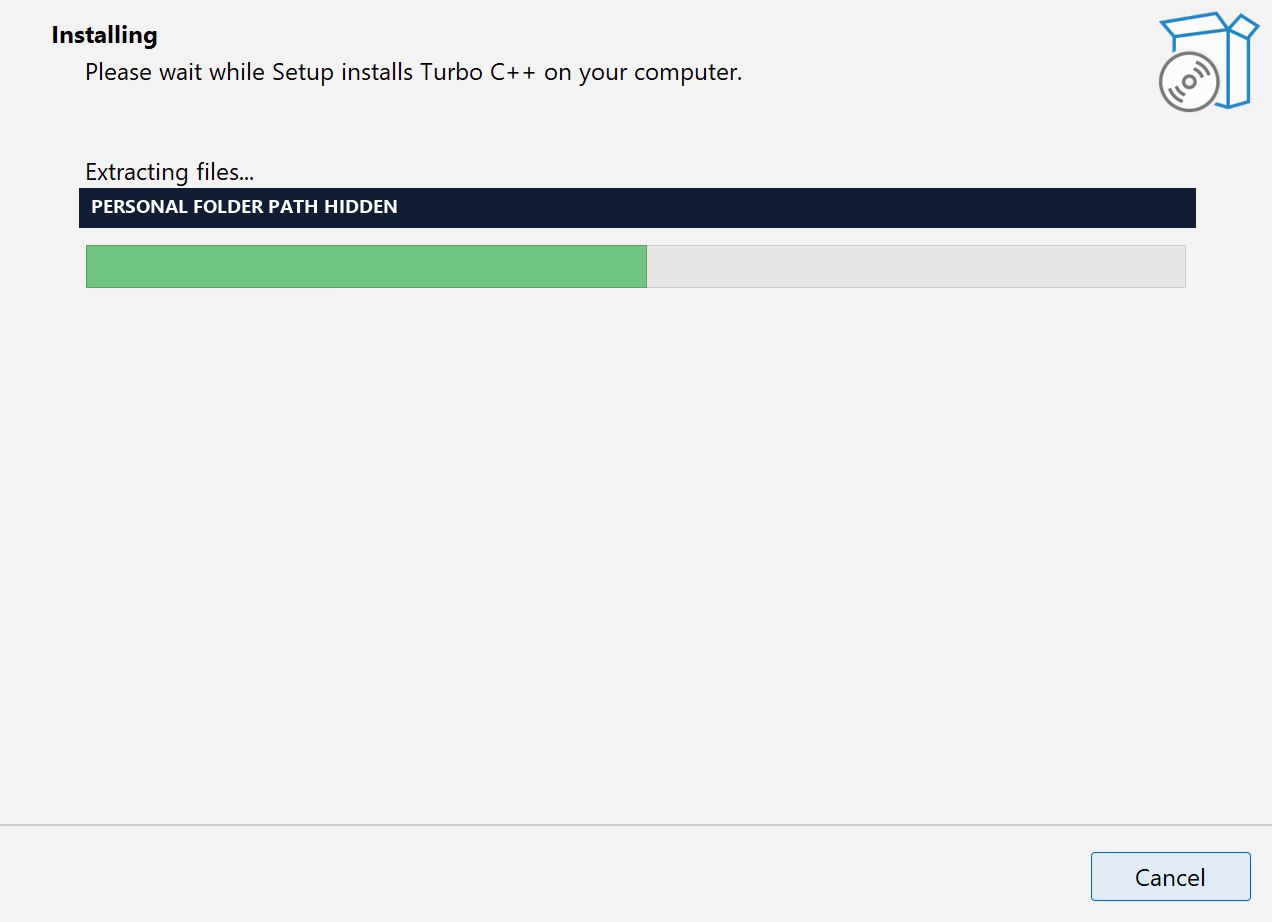
On Ready to Install, check the Destination location and Additional tasks. Use Back if you need to change a choice, otherwise select Install. Wait while setup copies the application and bundled runtimes.
6. Finish setup
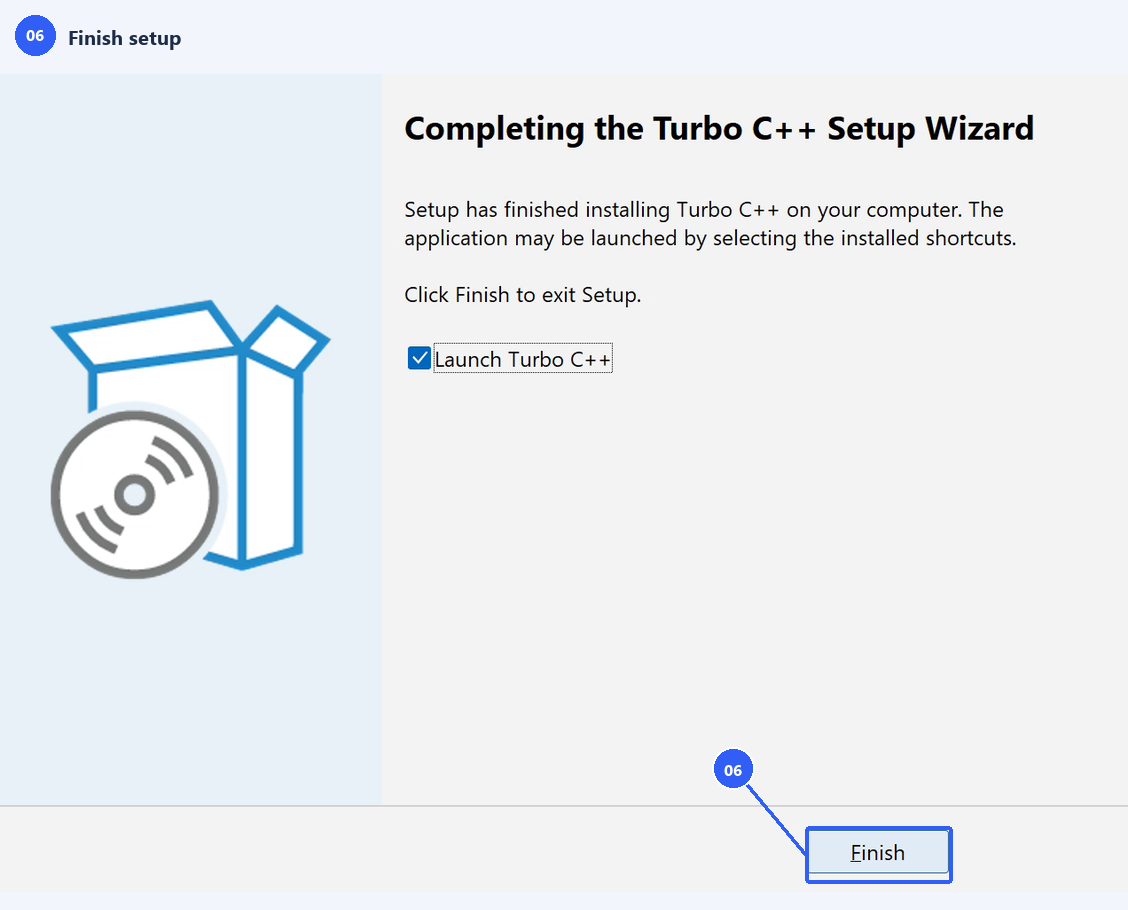
Leave Launch Turbo C++ selected if you want to open the application immediately, then select Finish. You can also open Turbo C++ from the Start menu.
7. Find the main launcher actions
Locate Start Turbo C++ and New source file. For this walkthrough, clear Full screen on launch so the editor opens in a window.
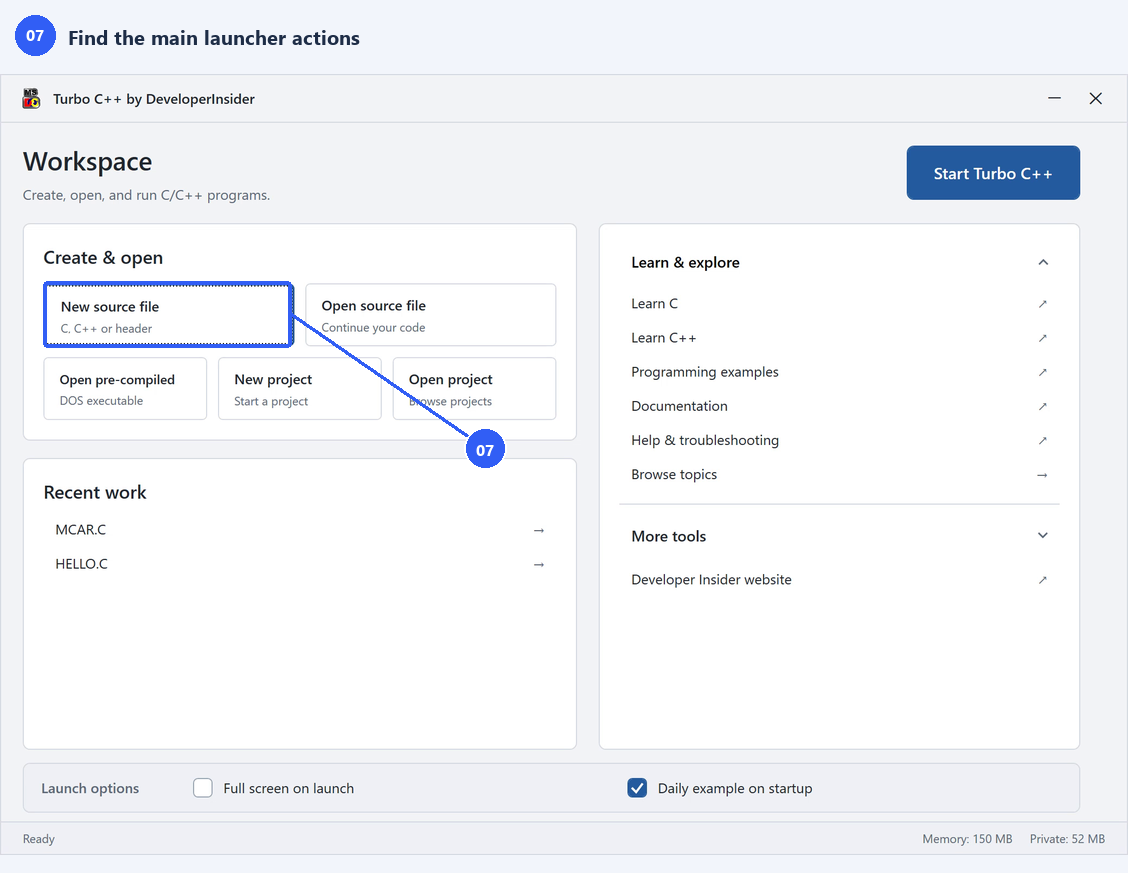
Tip: Alt+Enter switches DOSBox between windowed and fullscreen modes. If a programming-topic card appears in the launcher, close it with its Close button or Esc.
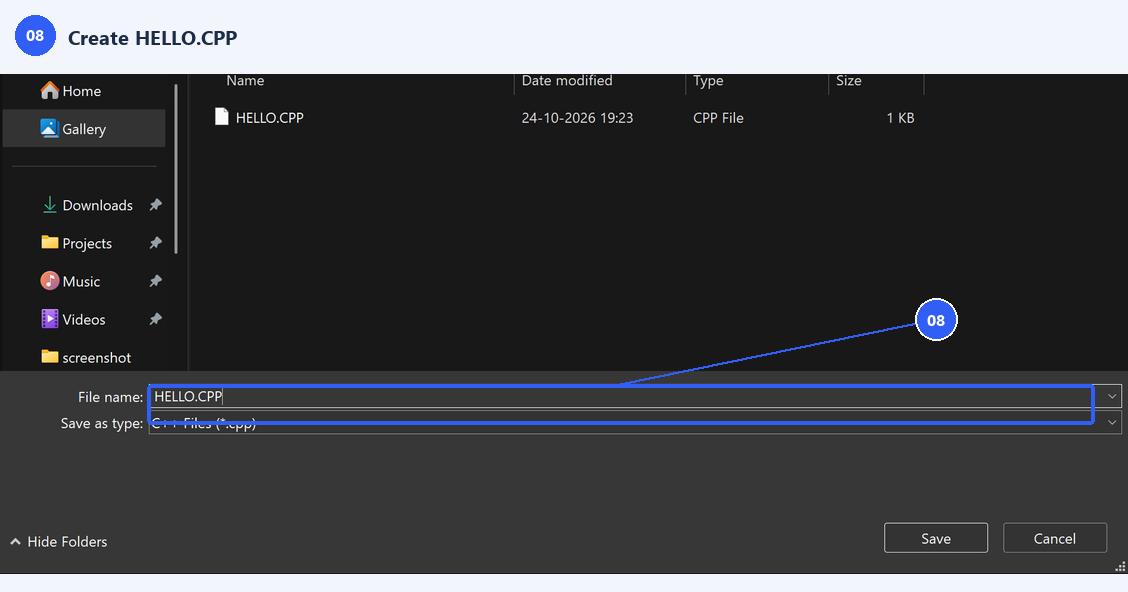
8. Create HELLO.CPP
Select New source file. Keep the workspace Projects folder and enter HELLO.CPP, then confirm the file dialog.
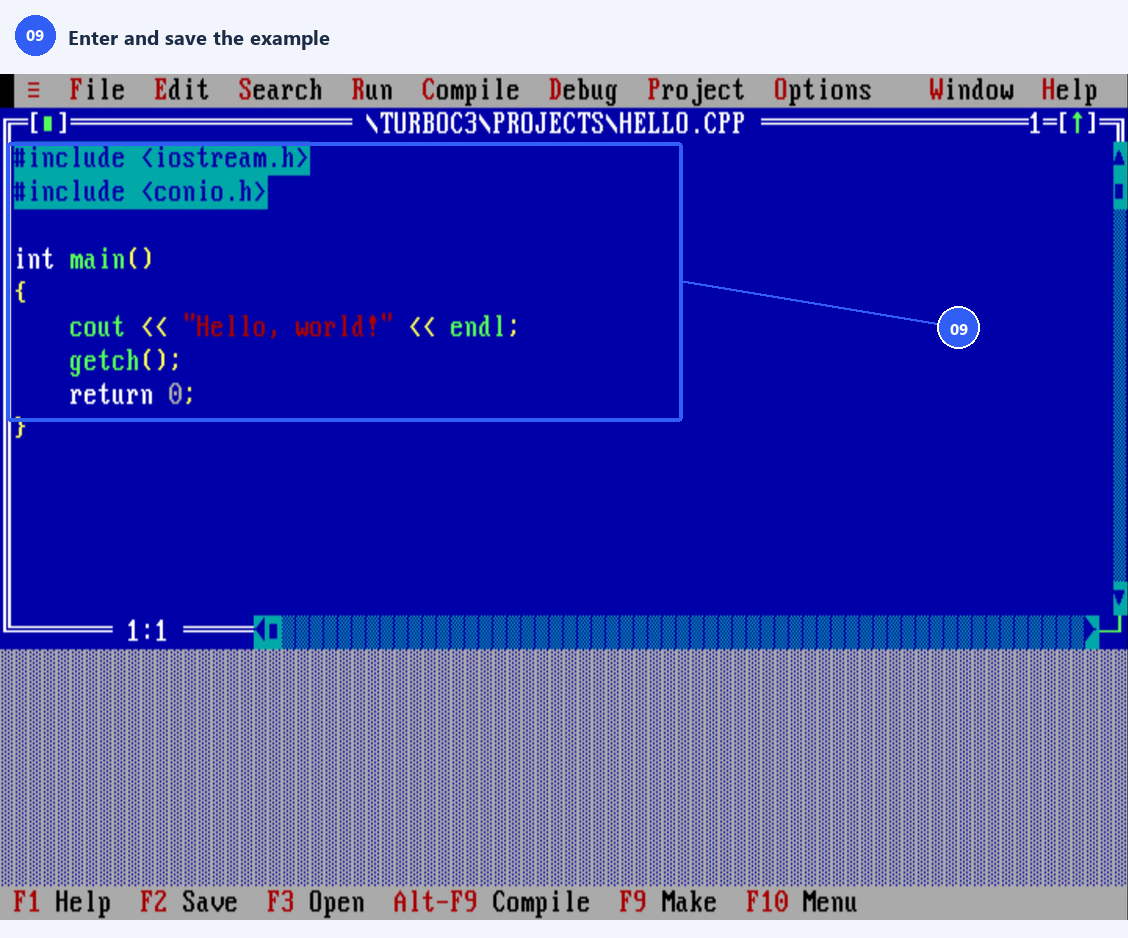
9. Enter and save the example
Enter the example below exactly as shown. Save with File > Save or F2.
#include <iostream.h>
#include <conio.h>

int main()
{
    cout << "Hello, world!" << endl;
    getch();
    return 0;
}
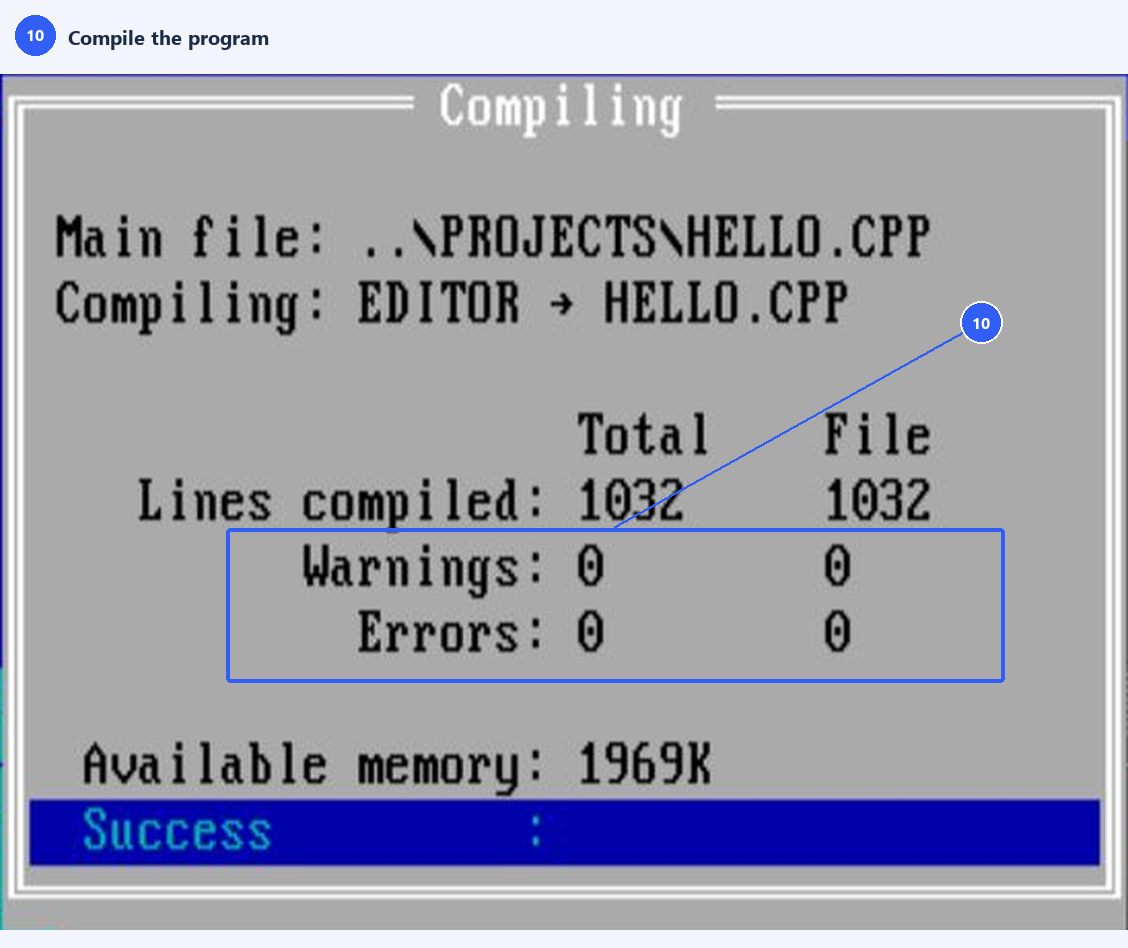
10. Compile the program
Choose Compile > Compile or press Alt+F9. Read the compiler result. If there are errors, correct the code, save, and compile again.
11. Run and check the output
Choose Run > Run or press Ctrl+F9. Confirm that Hello, world! appears. Press a key to return to the editor.

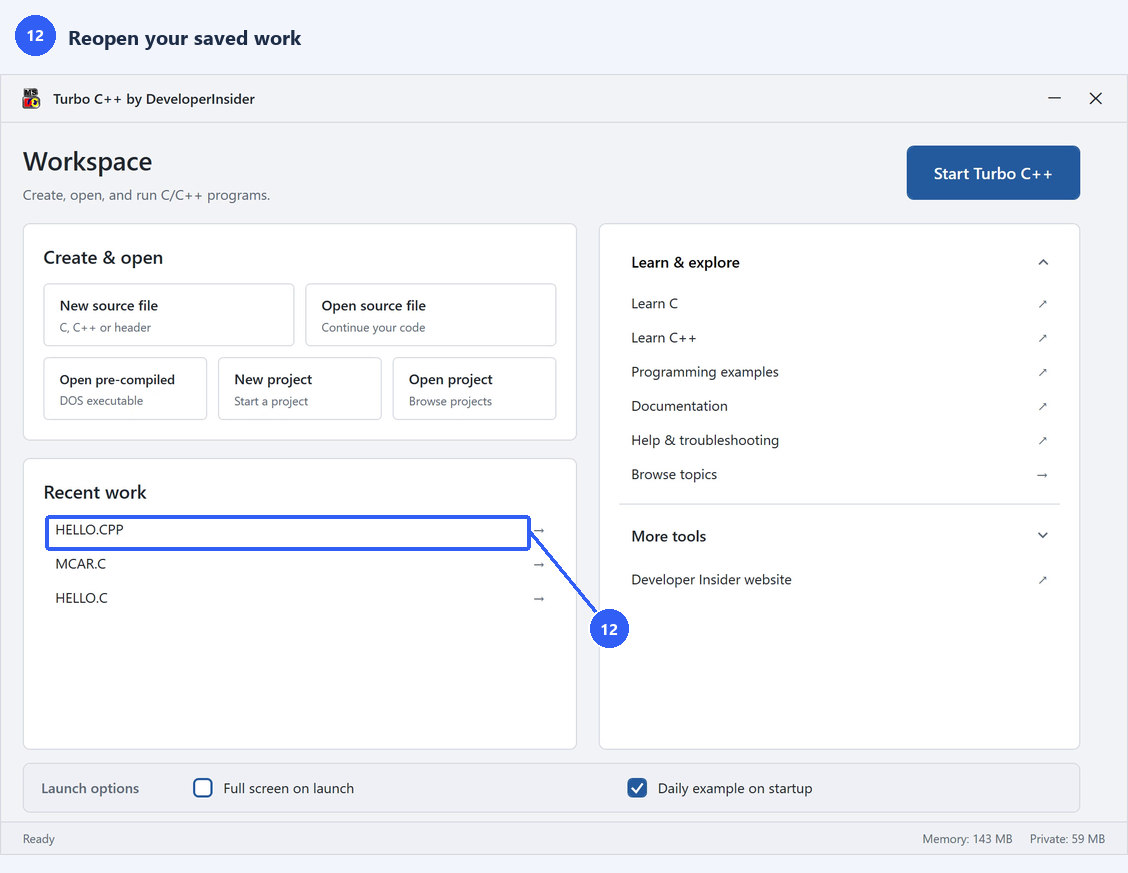
12. Reopen your saved work
Close the IDE normally with File > Quit and return to the launcher. Choose HELLO.CPP under Recent work, or use Open source file to find it again.
File locations and backups
%LOCALAPPDATA%\TurboCPP\TURBOC3\Projects
%LOCALAPPDATA%\TurboCPP\TURBOC3\SOURCE
Projects contains source and project files. SOURCE is for standalone DOS executables. The separate workspace is preserved during reinstall, upgrade, and uninstall. Older C:\TURBOC3 files are not moved automatically.
Common problems
-
Setup refuses to run. Make sure you're running the 64-bit version of Windows 11. If not, try the older Windows 10 version available here.
-
A filename is rejected. Use a DOS-compatible short name such as
HELLO.CPP. Avoid long names, unsupported characters, and Windows device names. -
The compiler reports errors. Compare the example carefully, save the file, and compile again. Confirm the classic headers match the example.
-
The display is fullscreen. Press Alt+Enter in DOSBox, or clear Full screen on launch before opening the IDE.
-
Old projects are missing. Back up and copy older files into the new Projects folder. Existing
C:\TURBOC3files are not migrated automatically. -
The output cannot be found. Run the example containing getch(); it keeps the output visible until you press a key.