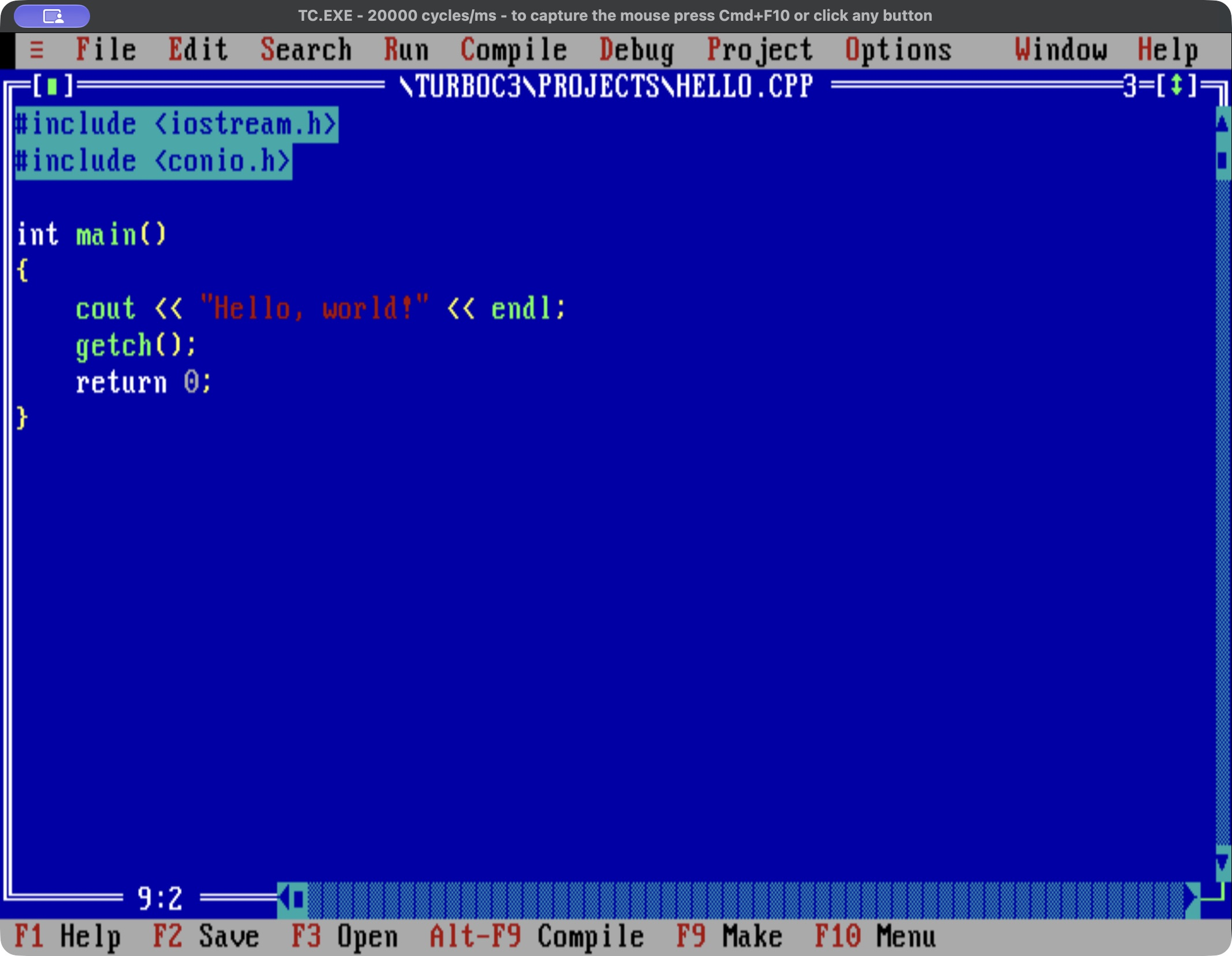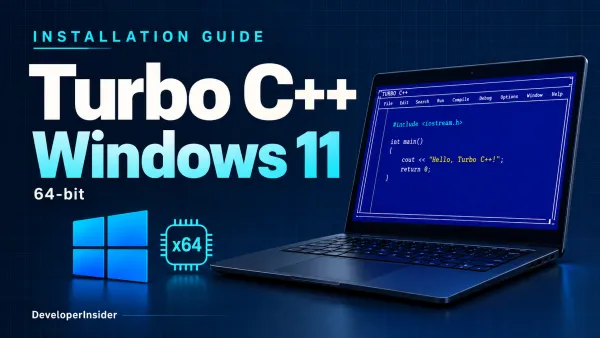

Turbo C++ provides an Intel Mac launcher for the original Borland IDE and compiler. The application includes DOSBox and supports source files.
⚠️
For Apple Silicon Macs, download the compatible version here.
System requirements
| Item | Requirement |
|---|---|
| Operating system | macOS 12 Monterey or a newer macOS version supported by your Intel Mac |
| Processor | Intel, 64-bit |
| Architecture/package | x86_64, TurboCPP-macOS-x86_64.dmg |
| Runtime components | Included in the application |
1. How to install Turbo C++ for macOS
| Step 1 | Download Turbo C++ |
| Step 2 | Open the downloaded disk image (TurboCPP-macOS-x86_64.dmg) and drag TurboCPP-Intel.app to Applications |
| Step 3 | Eject the disk image after the copy finishes. |
| Step 4 | Open Turbo C++ (Intel) installed as TurboCPP-Intel.app application from Applications. |
| Step 5 | Select Start Turbo C++ to launch the IDE, or choose a source-file or project action. |
The application includes its runtime components. A separate DOSBox, .NET runtime, Homebrew installation, or Rosetta installation is unnecessary for this native Apple silicon build.
2. How to use Turbo C++
- Open the Turbo C++ application from the Applications folder.
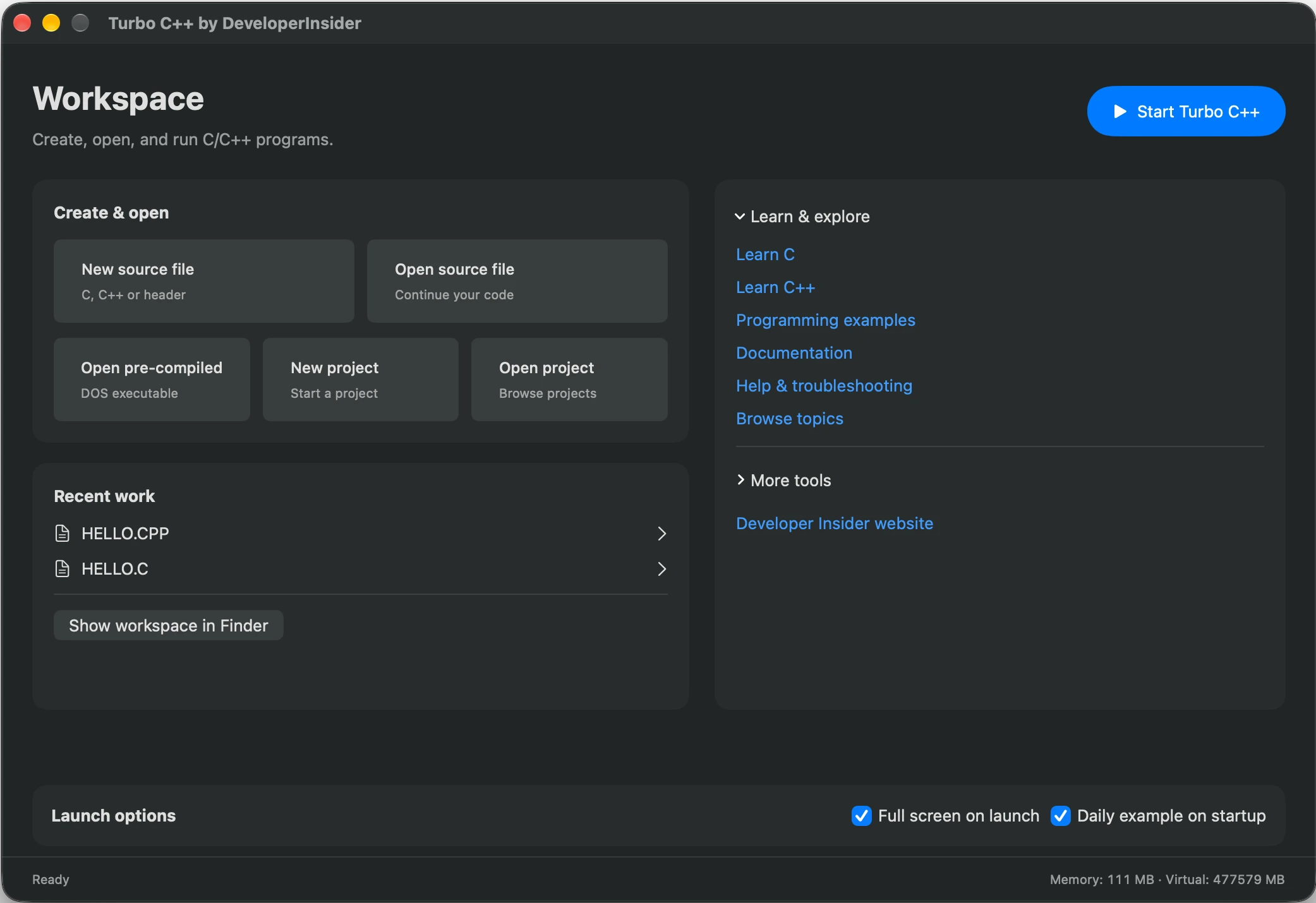
- To launch Turbo C++ in full-screen mode, simply click the Start Turbo C++ button. If you prefer windowed mode, uncheck the Full screen on launch checkbox before clicking Start Turbo C++.