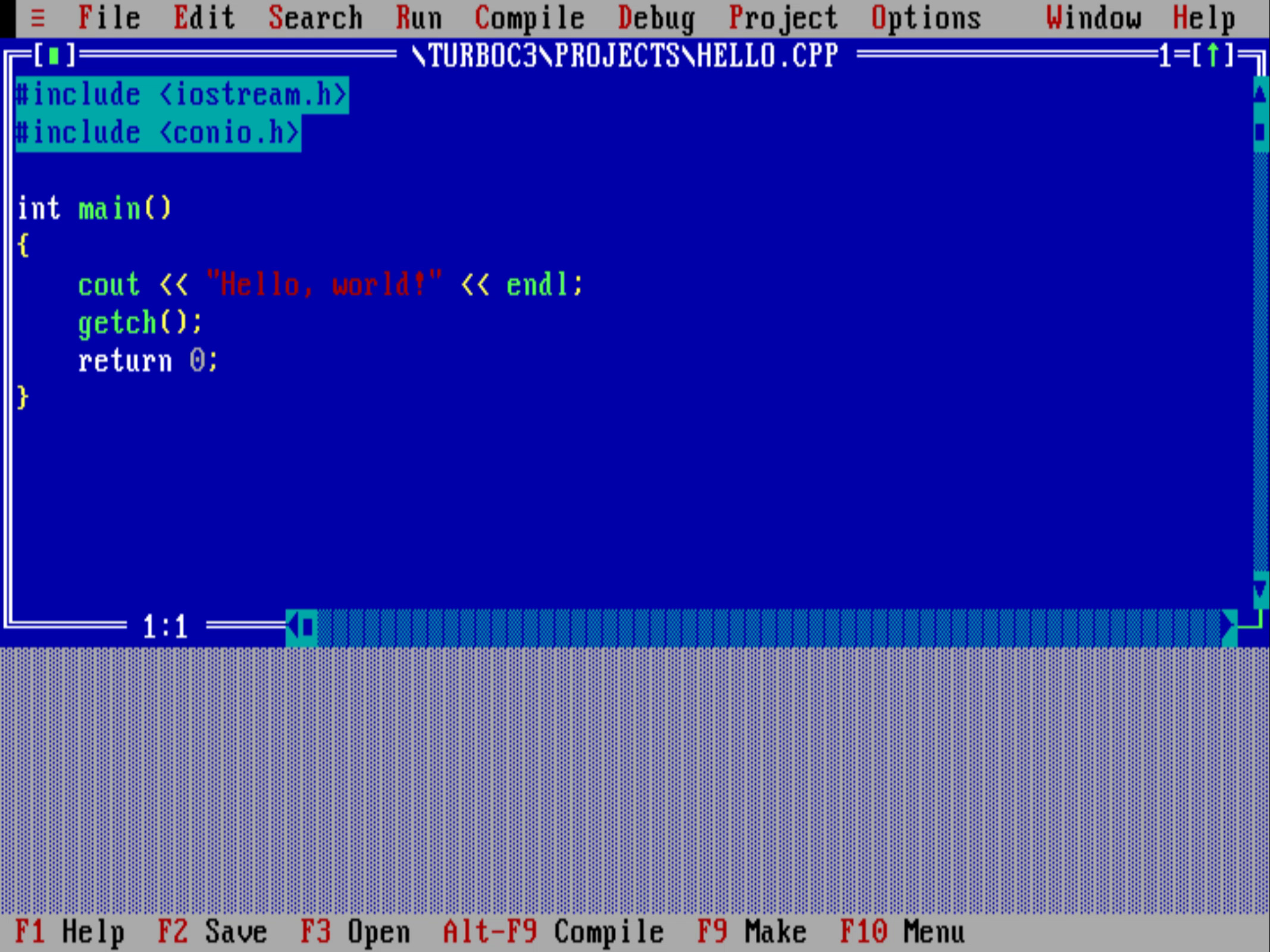

Install the classic Turbo C / Turbo C++ IDE, then save, compile, and run your first program. The Windows package includes DOSBox and the required .NET desktop runtime.
These instructions follow a fresh installation. During a reinstall, setup can reuse the existing application folder and skip the destination page.
Requirements
| Item | Requirement |
|---|---|
| Operating system | Windows 11, build 22000 or newer |
| Processor | 64-bit Intel or AMD (x64) |
⚠️
For Windows 10, download the older version from here.
1. How to install Turbo C++ for Windows 11
| Step 1 | Download Turbo C++ |
| Step 2 | If any previous version of "Turbo C++" is installed on your computer, then first of all uninstall that. |
| Step 3 | Run the "TurboCPP-Windows-x64-Setup.exe" file. |
| Step 4 | Follow the setup instructions. Alternatively, you can follow the complete step-by-step installation guide here. |
| Step 5 | If any error occurs, please check the solution of common Turbo C++ issues here. |
2. How to use Turbo C++
- After installation is complete, double-click the Turbo C++ shortcut on your desktop or launch it from the Start menu.
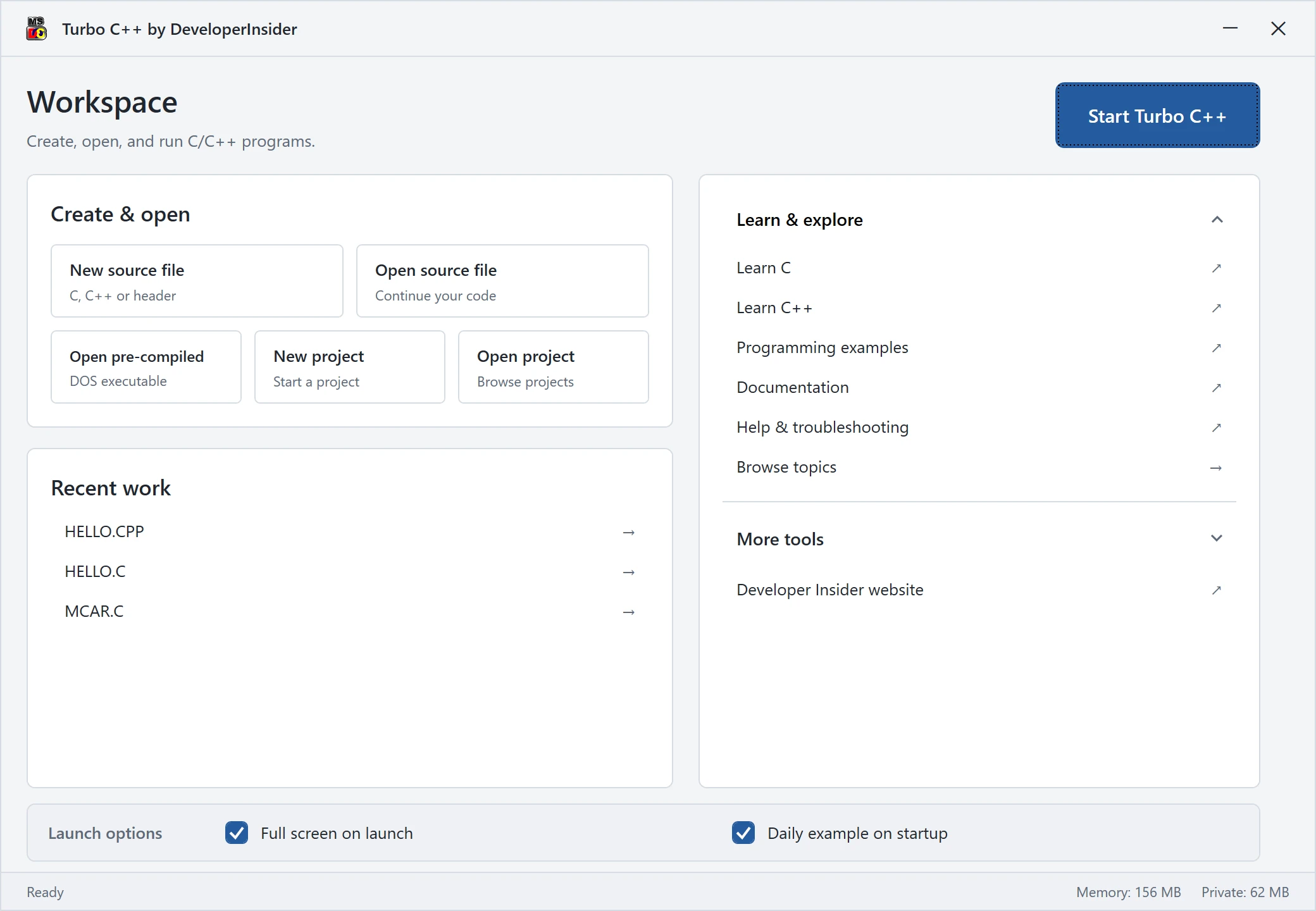
- To launch Turbo C++ in full-screen mode, simply click the Start Turbo C++ button. If you prefer windowed mode, uncheck the Full screen on launch checkbox before clicking Start Turbo C++.