
Install the classic Turbo C / Turbo C++ IDE, then save, compile, and run your first program.
1. Requirements
| Item | Requirement |
|---|---|
| Operating system | Windows 10, 32-bit or 64-bit |
| Additional runtime | The standard Windows 10 download requires no separate .NET installation. |
⚠️
For Windows 11, download the latest version from here.
2. How to install Turbo C++ for Windows 10
| Step 1 | Download Turbo C++ |
| Step 2 | If any previous version of "Turbo C++" is installed on your computer, then first of all uninstall that. |
| Step 3 | Extract the downloaded "Turbo C++ 3.2.zip" file. |
| Step 4 | Run the "setup.exe" file. |
| Step 5 | Follow the setup instructions. |
| Step 6 | If any error occurs, please check the solution of common Turbo C++ issues here. |
3. How to use Turbo C++
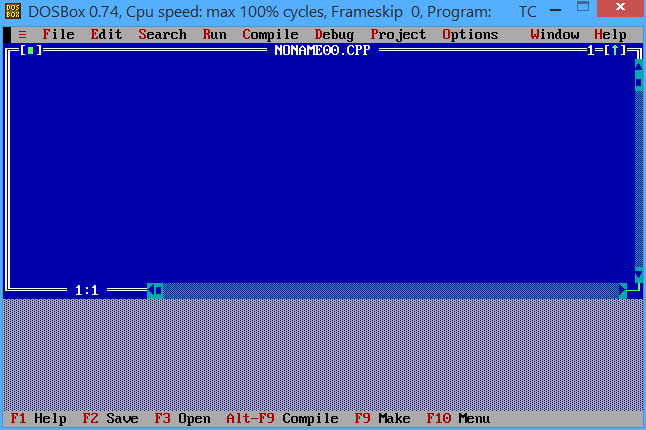
- Double click on the "Turbo C++" shortcut link on the desktop.
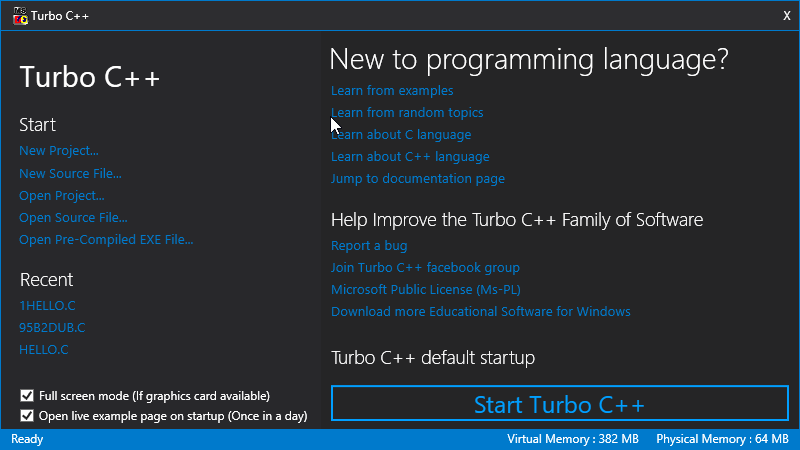
- If you want to run turbo c++ on full screen simply click on the button "Run Turbo C++
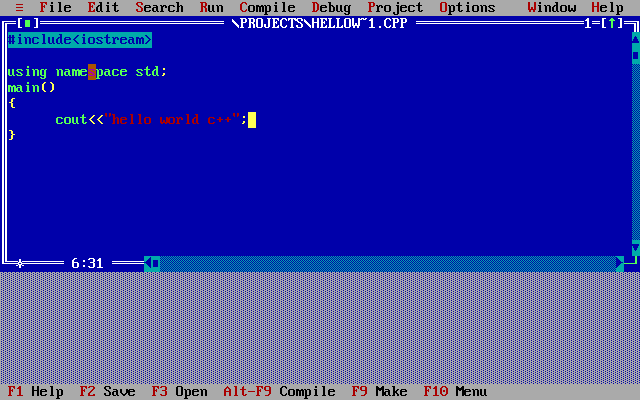
- "OR" If you do not want full-screen mode uncheck the "Full screen mode" check box and click on the button "Start Turbo C++"