
Signed git commit proves it actually came from you and gets you the "Verified" badge on GitHub, GitLab, and Bitbucket. Since Git 2.34, you can sign git commits with an SSH key instead of GPG. And with 1Password, you can handle the signing for you without your private key ever touching disk.
Prerequisites
- Git 2.34+ (
git --version) - 1Password, with the SSH agent turned on (check 1Password's SSH agent guide)
- An SSH key saved in your 1Password vault
1. Configure Git
Easiest:
-
Open the saved SSH key in 1Password
-
Click the
⋮(3 vertical dots) on top right -
Select "Configure Commit Signing"
-
Copy the snippet into your
.gitconfigfile.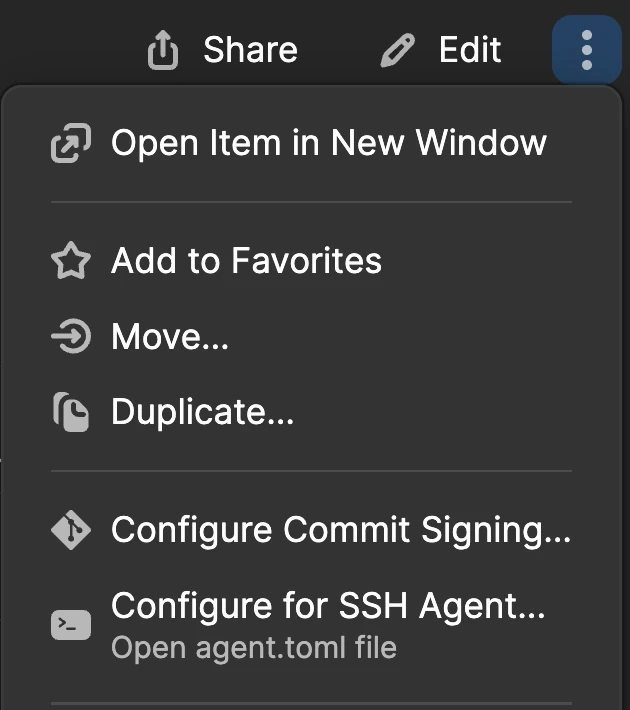
Manual:
git config --global gpg.format ssh
git config --global commit.gpgsign true
git config --global user.signingkey "<your-public-key>"
git config --global gpg.ssh.program "<op-ssh-sign-path>"
| OS | op-ssh-sign path |
|---|---|
| macOS | /Applications/1Password.app/Contents/MacOS/op-ssh-sign |
| Windows | %LOCALAPPDATA%\1Password\app\8\op-ssh-sign.exe |
| Linux | /opt/1Password/op-ssh-sign |
(Remove --global flag from above commands to limit commit signing to single repo.)
2. Register the key with your Git host
Add the same SSH public key in your host's SSH key settings (e.g., GitHub → Settings → SSH and GPG keys → New SSH key), but set Key type to Signing Key not the Authentication key.
3. Test it
git commit --allow-empty -m "test signed commit"
git log --show-signature -1
Push and check for the Verified badge on your host (Github/Gitlab/Bitbucket).

GUI clients (Fork, SourceTree etc.)
Desktop git apps use your system git config, so commits made through the GUI are signed automatically too, nothing extra to set up.