
If web pages randomly hang, video calls stutter, or a VPN connects but nothing loads afterward, a mismatched MTU is one of the most common cause of these issues. The good news is finding the correct value only takes a few minutes with a ping test, on any platform.
What MTU Actually Is
MTU (Maximum Transmission Unit) is the largest packet size, in bytes, that a network link can carry without needing to break it into smaller pieces (fragmentation). Ethernet defaults to 1500 bytes. But real-world connections often sit below that. For example, PPPoE connections, lose 8 bytes to encapsulation overhead, capping out at 1492. VPN tunnels it could be in 1400–1450 range.
If a device sends packets larger than what every hop along the path can handle, and those packets have the "Don't Fragment" flag set, they get silently dropped instead of resized. The sending device is supposed to get an ICMP error back telling it to shrink its packets but many firewalls block that ICMP message, so the connection just stalls instead of failing cleanly. That's why symptoms are so inconsistent small requests (DNS lookups, basic page loads) go through fine, while TLS handshakes, larger images, file transfers hangs or times out.
Ping Test Method
The idea is simple, send ping packets with fragmentation disabled, and reduce the packet size until they stop failing. Whatever size gets through cleanly, add 28 bytes (20 for the IP header + 8 for the ICMP header) to get your real MTU.
Largest unfragmented ping payload + 28 = Optimal MTU
Windows
Open Command Prompt and run:
ping 8.8.8.8 -f -l 1472
-fdisables fragmentation-lsets the payload size in bytes
If you see Packet needs to be fragmented but DF set, lower the number and try again. Once you get clean replies with 0% loss, increase the number little at a time until you find the exact breaking point, then lower one step to confirm the last working value.
macOS
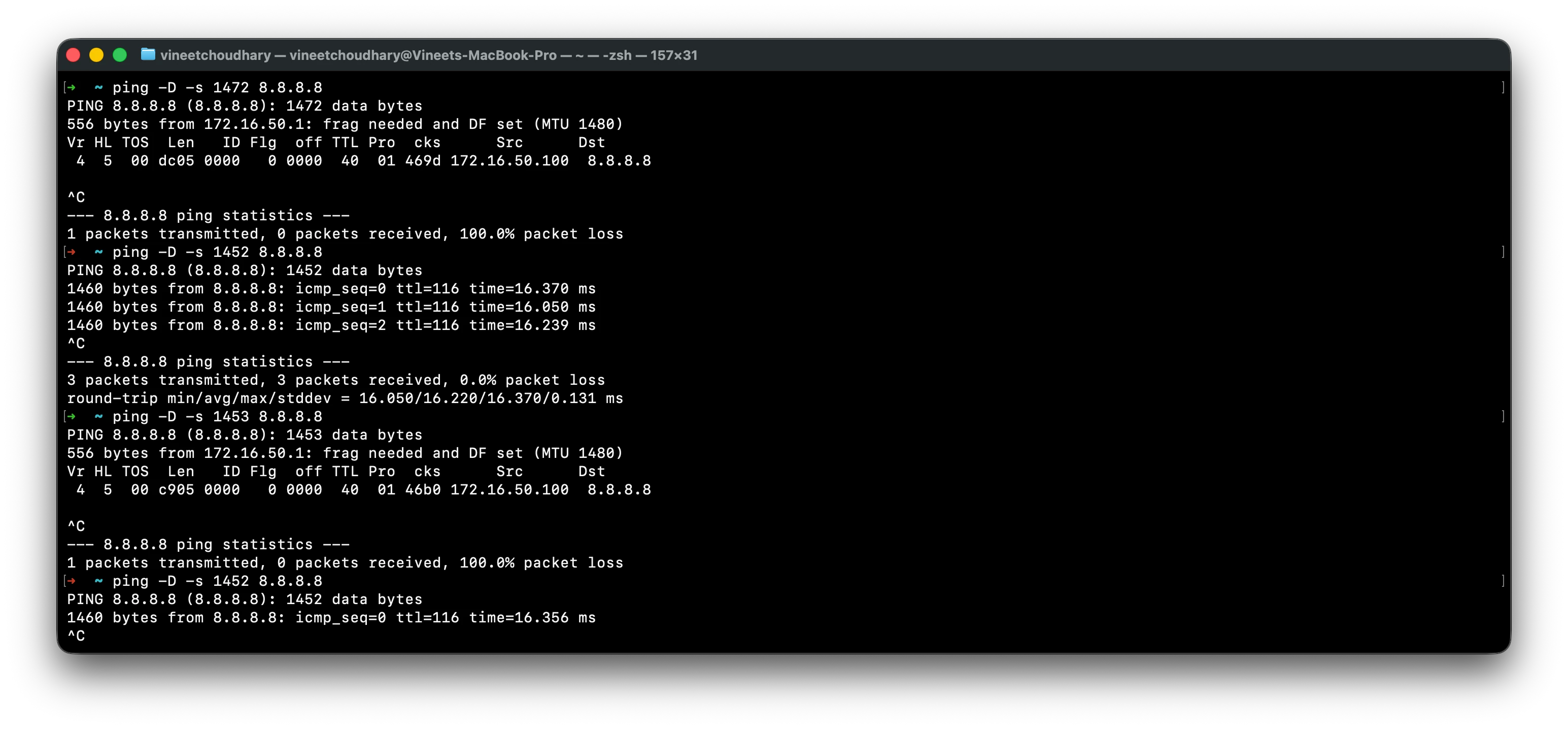
ping -D -s 1472 8.8.8.8
-Ddisables fragmentation-ssets the payload size in bytes
Linux
ping -M do -s 1472 8.8.8.8
-Mdisables fragmentation-ssets the payload size in bytes
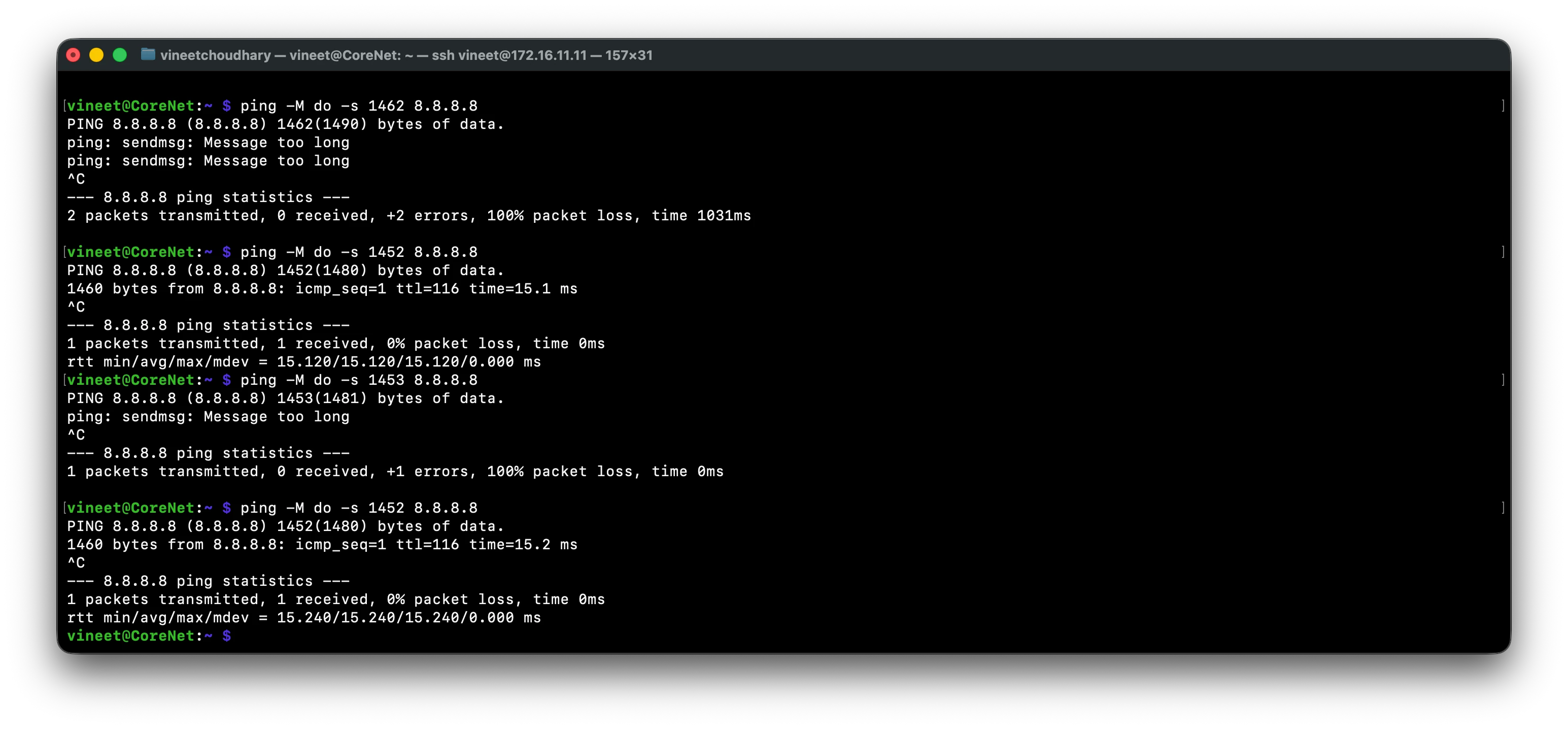
Example
Here is a testing example for a PPPoE connection:
ping 8.8.8.8 -f -l 1450   → Reply received
ping 8.8.8.8 -f -l 1460   → Packet needs to be fragmented
Packets stopped getting through somewhere between 1450 and 1460. Narrowing it down further landed on 1452 as the largest payload that consistently succeeded:
ping 8.8.8.8 -f -l 1451   → Reply received (0% loss)
ping 8.8.8.8 -f -l 1452   → Reply received (0% loss)
ping 8.8.8.8 -f -l 1453   → Packet needs to be fragmented
Add the 28-byte header overhead:
1452 + 28 = 1480
So 1480 is the correct MTU to set on the router. This is a bit lower than the standard PPPoE ceiling of 1492, which points to some additional overhead further up the path (commonly a VLAN tag or an extra layer of tunneling from the ISP side).
Once you've settled on the correct number, set it as the WAN MTU on your router so every device behind it inherits the this value automatically, rather than configuring each device individually.